Introduction
A Table List defines which source tables belong together and which queue processes them.
To get started, open SQLSync from the landing page, then select Data Sync Table List Configuration:
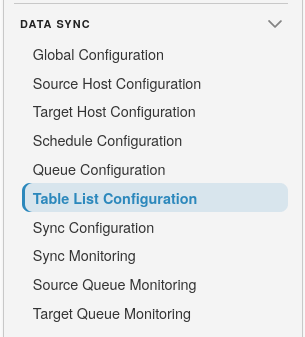
Table List overview
Each table list has a name, an assigned queue, an active flag, a set of selected tables, and optional column subsets.
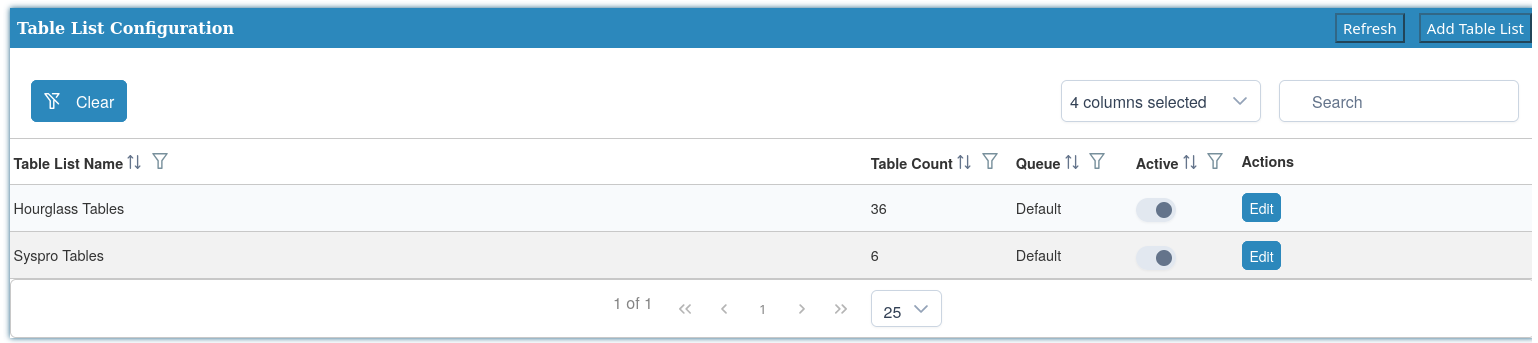
Use Add Table List to create a list, Refresh to reload, Edit to change an existing list, and Column Filtering to choose which columns each table syncs.
Add or edit a table list
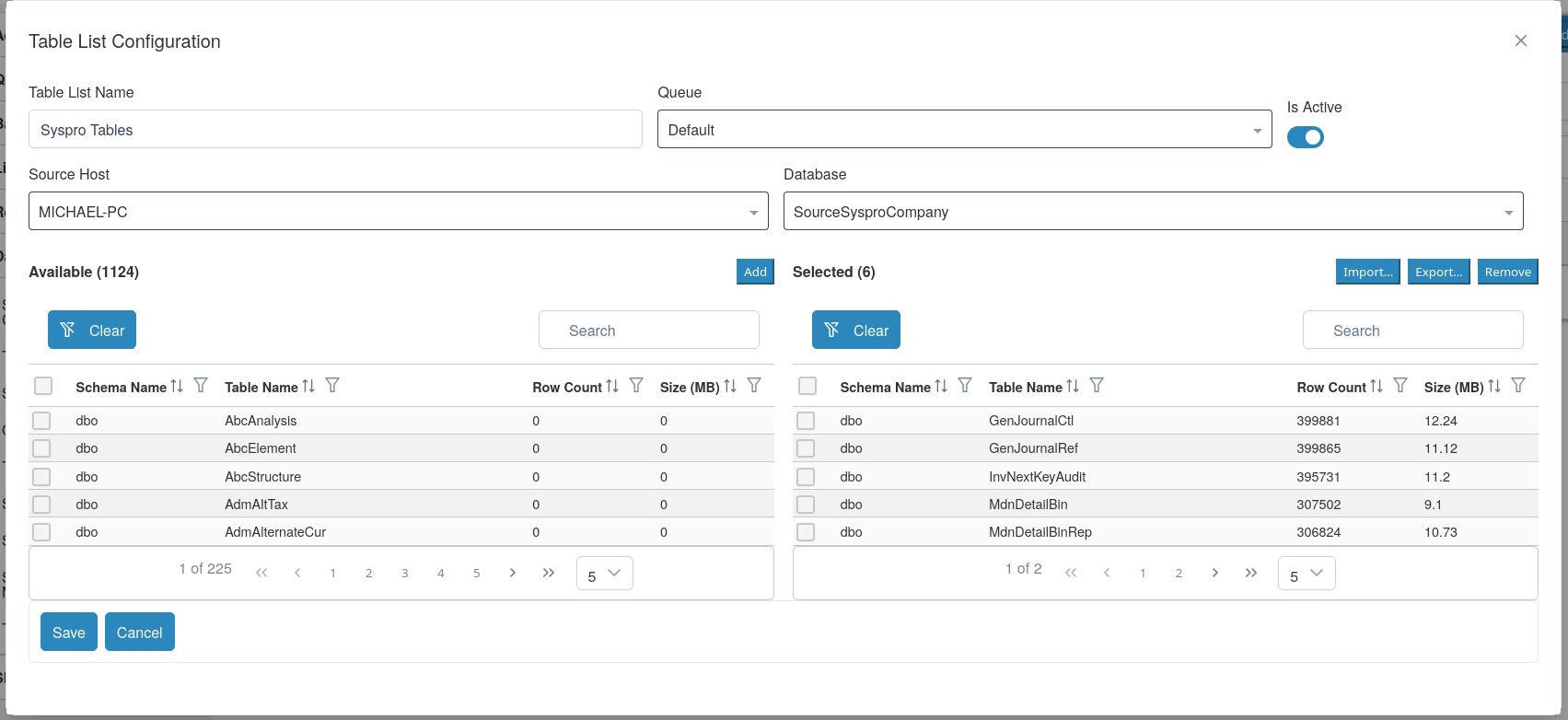
Fields:
- Table List Name - required name for the list.
- Queue - required processing queue.
- Is Active - inactive lists are unavailable when creating sync configurations.
Selecting tables
Below the fields you can browse tables from a source host and database:
- Choose a Source Host.
- Choose a Database.
- Move tables between Available and Selected using the transfer list.
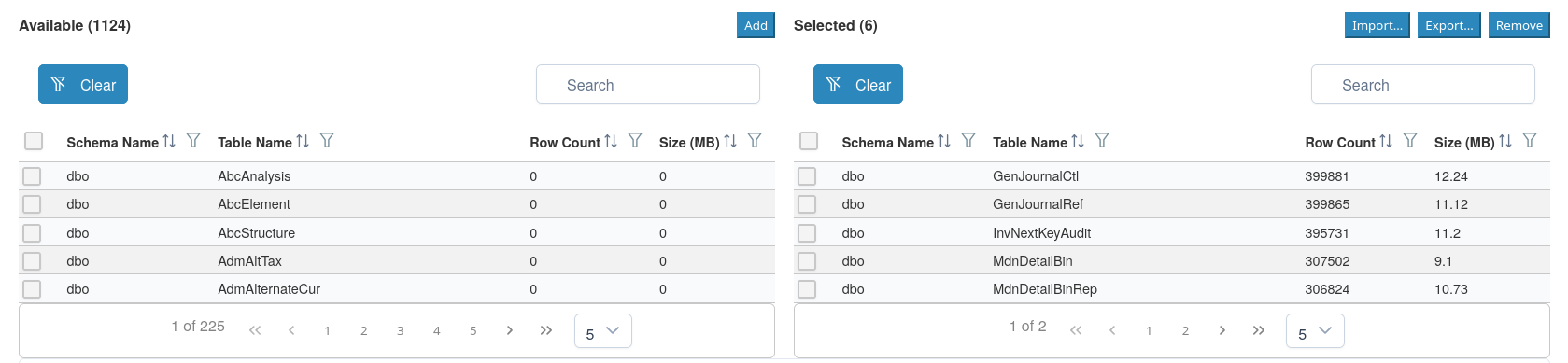
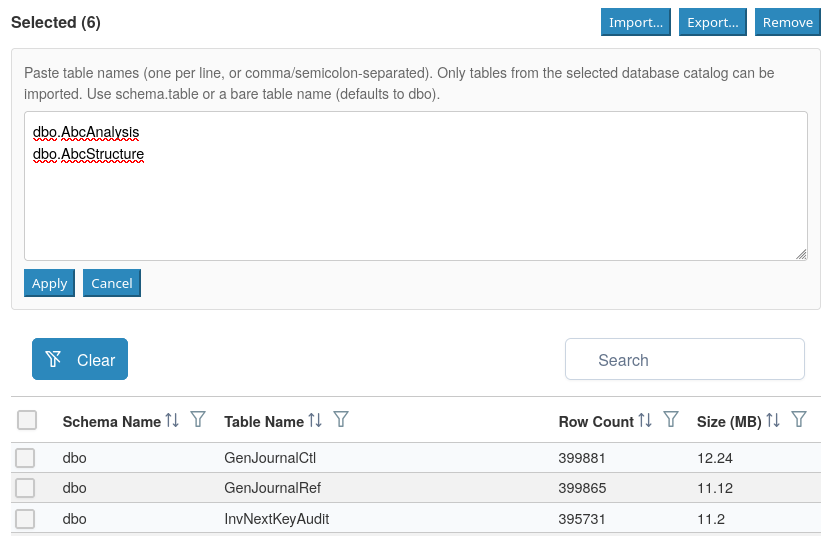
The transfer list shows Schema Name, Table Name, Row Count, and Size (MB).
Note
Only tables are supported. Each table you sync must have a primary key so Change Tracking can identify which rows where inserted, updated or deleted since the last delta.
Import and export
You can import or export table selections as text:
- Import - paste table names one per line, or separated by commas or
semicolons. Use
schema.table, or a bare table name (defaults todbo). Only tables that exist in the selected database catalog can be imported. - Export - copies the selected tables as
schema.table(one per line) so you can reuse the list elsewhere.
Tip
Select a source host and database before importing so catalog matching can resolve table names.
Select Save or Cancel when you are done.
Column filtering
By default each table syncs all columns, including columns added later on the source. Use the row Column Filtering action to limit a table to a subset of columns.
The Column Filtering dialog shows the table list name. Add tables with Edit before choosing columns.
Fields and controls:
- Table (
* = column filtering enabled) - pick a table from the list. Tables with a stored subset are marked with*and listed first. - Sync all columns - leave this checked to keep the default (all columns, including new source columns later). Clear it to choose a subset.
- Source Host and Database - required to browse the live column catalog or import names. You can still export a saved subset without them.
When Sync all columns is cleared, a transfer list shows Available columns and Selected columns, with Column, Type, and PK. Primary key columns cannot be unselected.
Import and export work like table selection:
- Import - paste column names one per line, or separated by commas or
semicolons. Bracketed names such as
[OrderId]are accepted. Only columns from the selected table catalog can be imported. - Export - copies selected column names (one per line) so you can reuse the list elsewhere.
Note
Column selection can be changed while a related table is in Pending Resync, Disabled, or Error. It is locked while a sync or disable operation is queued or running. Mark the table for Pending Resync or disable it first, then change columns.
Warning
A stored subset ignores new columns added later on the source. All sync
configurations that share the table list share the same subset. Column names
are compared case-sensitively, so tables with a case-sensitive collation can
select distinct columns such as ID and id.
After you save, Sync Monitoring shows All columns or Subset (n) in the Columns field. Checksums and sync payloads use the selected columns (plus primary keys). An update to an unselected column still produces a Change Tracking delta, but only selected column values are written to the target.
Select Save or Cancel.