Introduction
Sync Monitoring shows the health of your sync configurations and the status of individual tables.
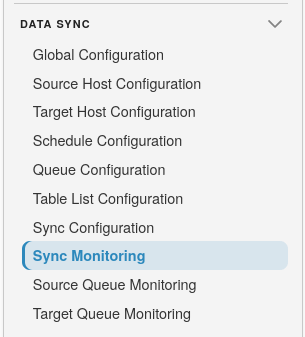
To get started, open SQLSync from the landing page, then select Data Sync Sync Monitoring:
Sync Monitoring summary
The summary lists each sync configuration with hosts, databases, table list, last sync date, and status counts.

Key columns:
- Sync Configuration Name
- Source Host / Source Database
- Target Host / Target Database
- Table List Name
- Last Sync Date
- Total Tables
- Pending/Resync
- Syncing
- Disabled
- Errors
- Checksum Errors
Click a count (for example Errors or Total Tables) to open the detail page filtered to that configuration and status.
Use Refresh to reload the summary.
Sync Monitoring details
The detail page lists tables for one or more configurations. Use the table column selector to show extra fields such as Source Row Count, Target Row Count, and Row Count Difference (those are hidden by default).
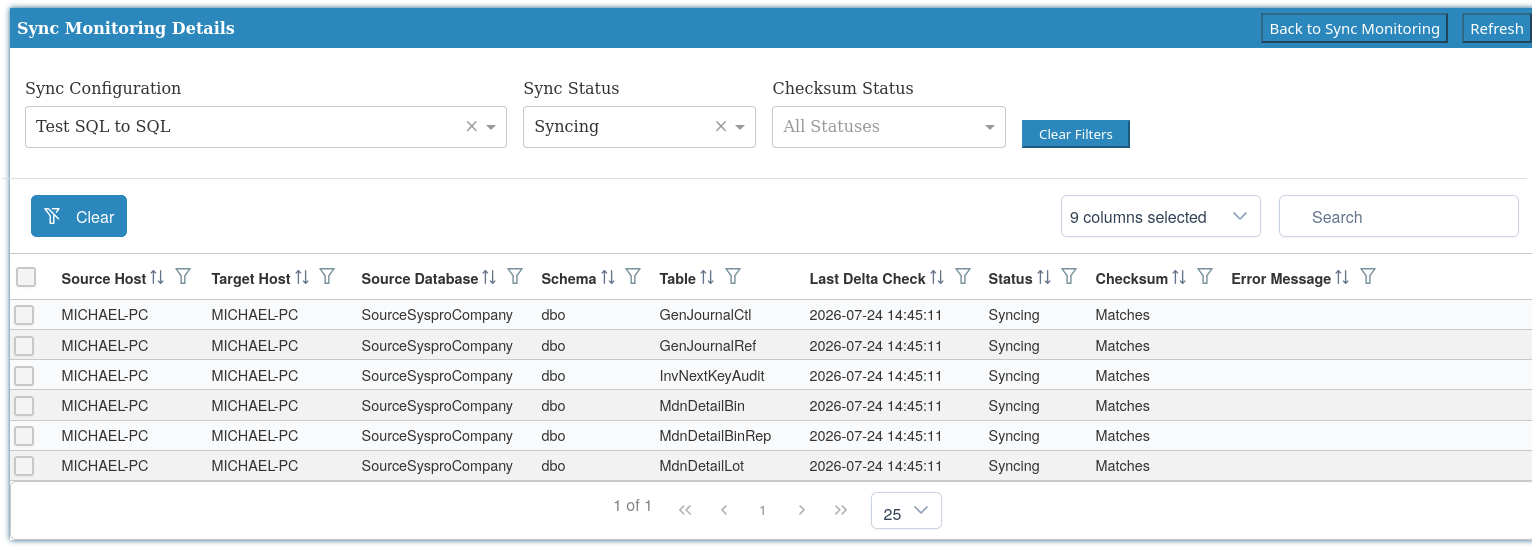
Key detail columns include:
- Source Host / Target Host
- Source Database / Schema / Table
- Columns - All columns, or Subset (n) when column filtering is enabled
- Last Delta Check
- Status
- Checksum
- Error Message
Header actions:
- Back to Sync Monitoring - return to the summary
- Refresh - reload the detail list
Filters
- Sync Configuration - limit to one configuration, or show all
- Sync Status - Pending, Syncing, Disabled, or Errors
- Checksum Status - Matches or Not Matches
- Clear Filters - reset all filters
Status meanings
Table sync statuses:
- R - pending resync (marked by you or the system)
- Q - resync enqueued
- P - pending partial resync
- M - partial resync enqueued
- I - pending / in initial sync
- S - syncing (steady-state deltas)
- D - pending disablement
- E - disable enqueued
- N - disabled / not syncing
- X - error
UI status filters group these as:
- Pending -
I,R,Q,P,M - Syncing -
S - Disabled -
N,D,E - Errors -
X
Checksum results may show matches, row-count or checksum mismatches, or Data Movement when changes occurred during calculation.
Note
Checksums compare the synced columns for each table (the Table List
subset plus primary keys when a subset is configured, otherwise all source
columns). String columns are included using a short prefix and a binary
collation, and date/time columns are compared at second precision. Binary,
image, XML, and timestamp columns are excluded, as are sync metadata columns
named C4SQL_*, because source and target platforms can compare them
differently.
Bulk actions
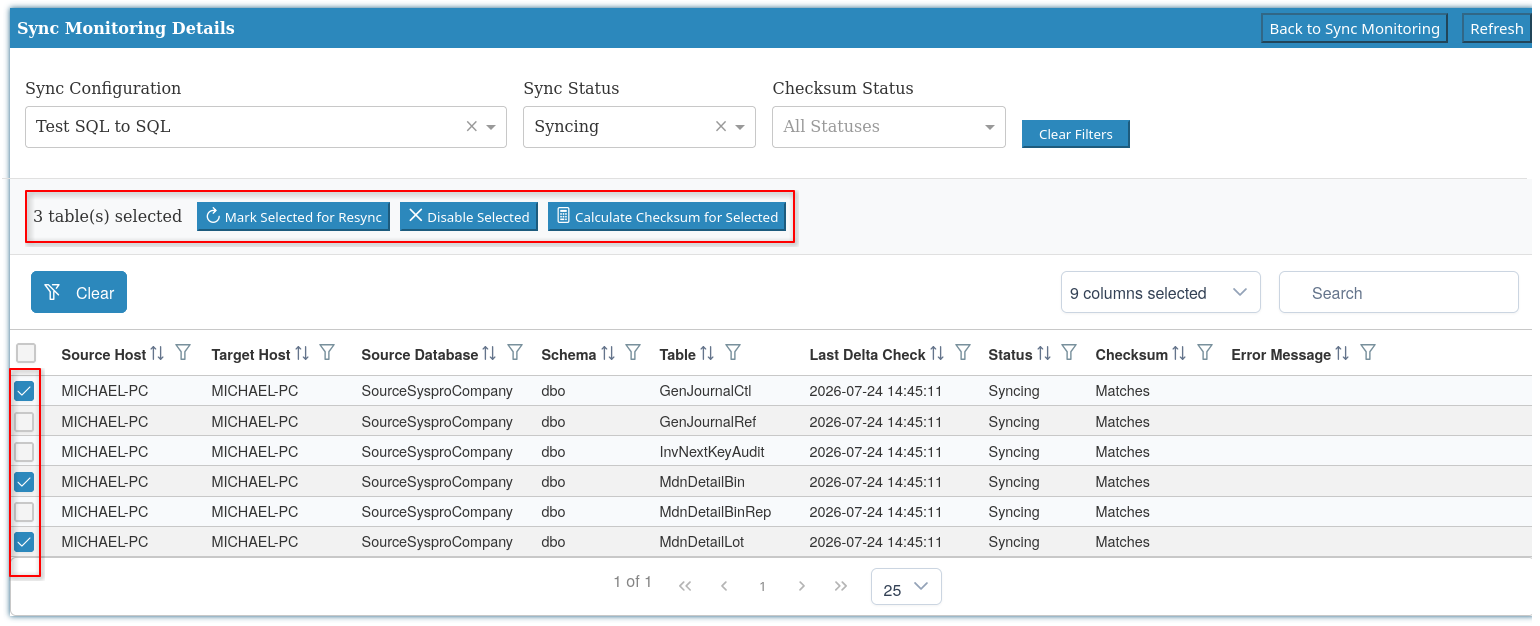
Select one or more tables to enable bulk actions. The bar groups them as Next schedule and On demand.
Next schedule (applied on the next matching schedule run):
- Mark Selected for Resync - marks tables for a full reload on the next resync schedule run
- Mark Selected for Partial Resync - replays Change Tracking history within the retention window on the next resync schedule run (does not drop or reload the target table)
- Disable Selected - stops syncing on the next delta schedule run
On demand (queued immediately):
- Run Delta for Selected - queues an immediate delta sync. Only tables with status Syncing are queued.
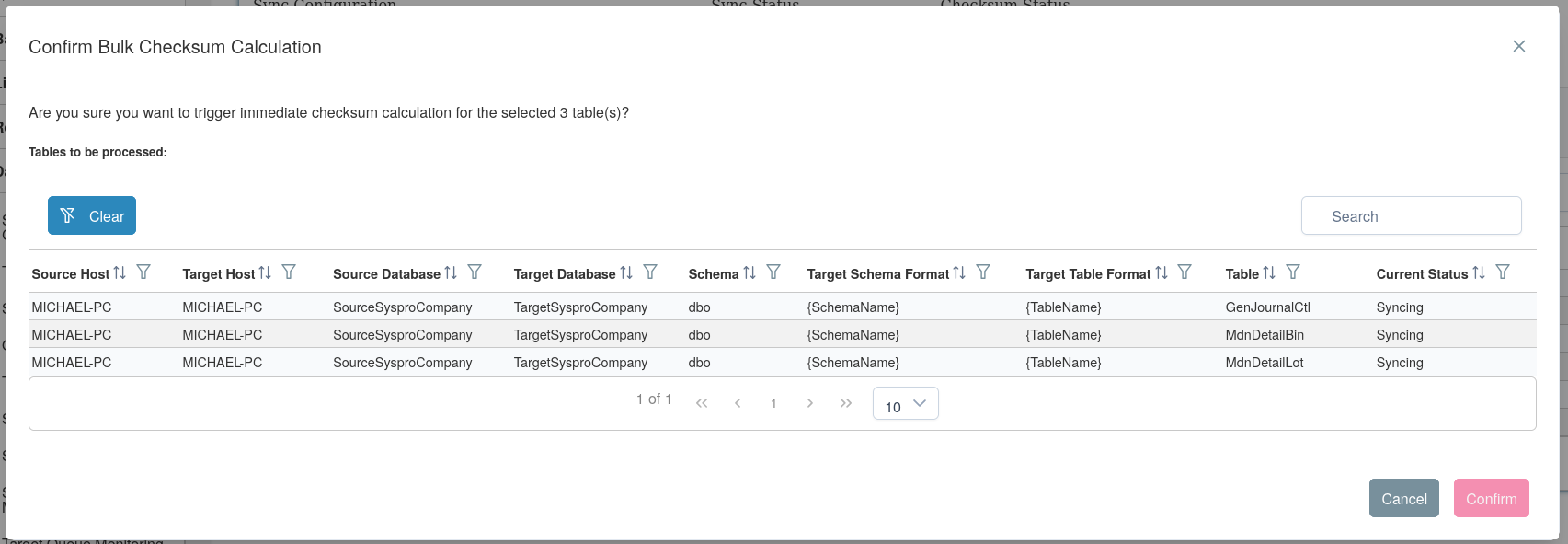
- Calculate Checksum for Selected - triggers checksum calculation
Confirm the change before the action runs.
Warning
A full resync drops and recreates the target table, then reloads all data for that table.
Tip
Use partial resync when checksum drift is likely still within Change Tracking retention (typically 7 days). It is faster than a full reload because the target table is left in place. If Change Tracking history has already expired, or checksum still fails after a partial resync, use a full resync instead.
Tip
If tables remain in pending status or show errors, check Queue Monitoring and confirm the related schedule is active.
Tip
Use Run Delta for Selected when you need Change Tracking applied now instead of waiting for the next delta schedule. It does not replace a full or partial resync.