Introduction
A Sync Configuration connects a source host, target host, schedule, table list, and databases into a runnable sync job.
To get started, open SQLSync from the landing page, then select Data Sync Sync Configuration:
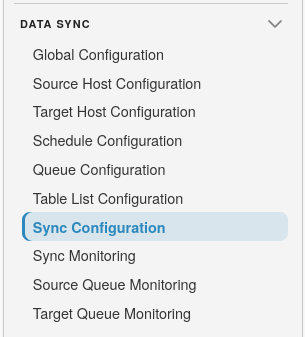
Sync Configuration list
The list shows existing configurations and whether each is active.
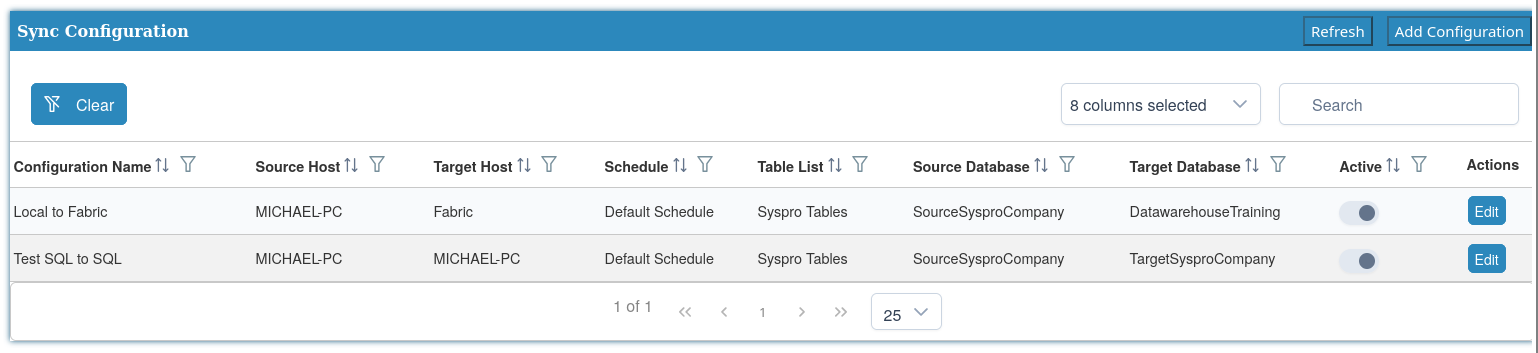
Use Add Configuration to create a configuration and Refresh to reload the list.
Create a sync configuration
Structural settings are set when you create the configuration. When you edit later, hosts, databases, schedule, table list, and naming formats are visible but read-only. You can still change the name and active flag.
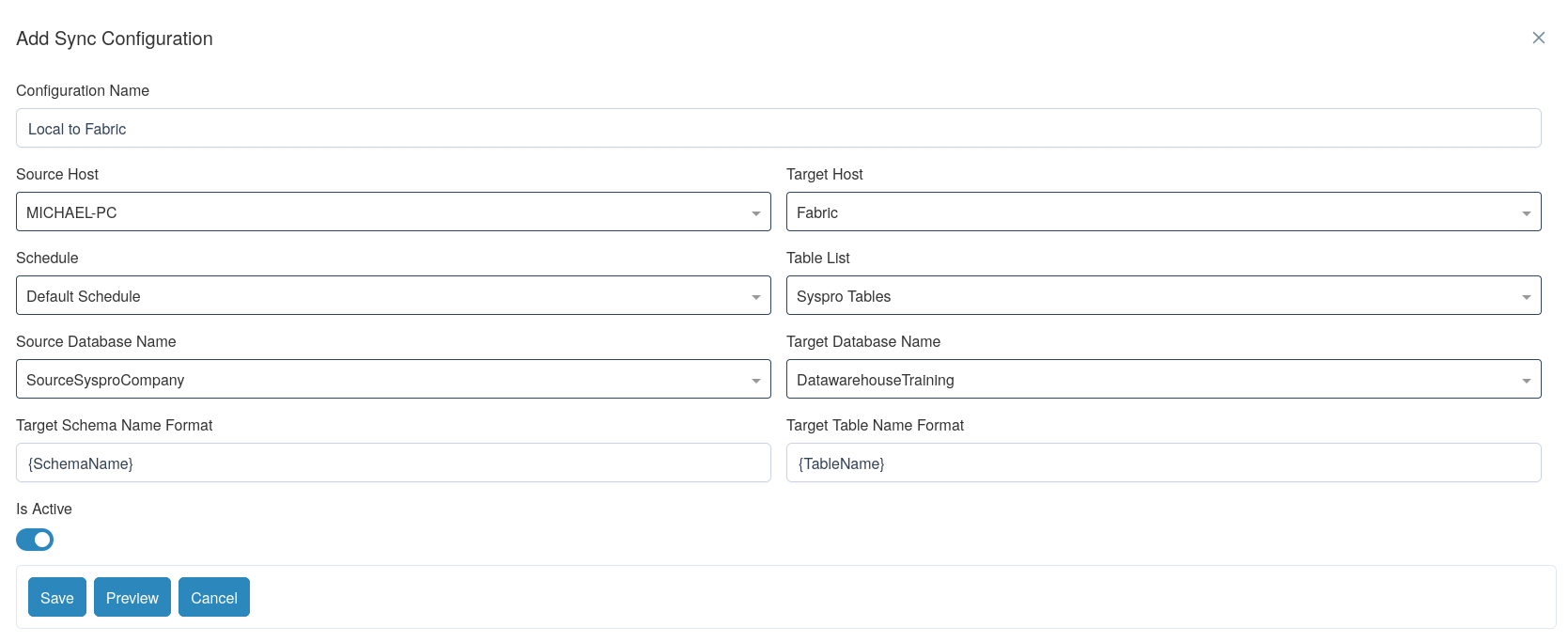
Fields:
- Configuration Name - optional. If left blank, SQLPro generates a name from the source host, table list, target host, and databases.
- Source Host - required active source host.
- Target Host - required active target host.
- Schedule - required active schedule.
- Table List - required active table list.
- Source Database Name - required. Loaded after you select the source host.
- Target Database Name - required. Loaded after you select the target host.
- Target Schema Name Format - required. Default
{SchemaName}. - Target Table Name Format - required. Default
{TableName}. - Is Active - whether the configuration participates in sync schedules.
Supported naming placeholders:
{SchemaName}{TableName}{SourceDatabaseName}{TargetDatabaseName}
You can also wrap placeholders in these transforms (they can be nested):
LOWER(arg)UPPER(arg)REPLACE(text, 'find', 'replace')— arguments may be quoted
Unknown placeholders or unmatched { } braces are rejected when you save.
Defaults are {SchemaName} for the schema format and {TableName} for the
table format.
Preview target names
After you have selected a table list, source database, target database, and both name formats, select Preview. The Target Name Preview dialog lists each source table and the schema and table name it will receive on the target:
- Source Database, Source Schema, Source Table
- Target Database, Target Schema, Target Table
Use this to confirm transforms and placeholders before you save. If a required field is missing, SQLPro asks you to select a table list, source database, target database, and name formats before previewing.
Form buttons are Save, Preview, and Cancel.
Naming format example
To keep the source database visible in the target schema (for example in a bronze layer), use:
- Target Schema Name Format:
bronze_{SourceDatabaseName} - Target Table Name Format:
{SchemaName}_{TableName}
If the source is database SysproCompanyA, schema dbo, table ArTrnDetail,
the target object becomes bronze_SysproCompanyA.dbo_ArTrnDetail. That makes it
easy to see where the data came from by looking at the schema name alone.
Other format examples:
LOWER({TableName})— target tableartrndetailUPPER({SchemaName})— target schemaDBOREPLACE({SchemaName}, 'dbo', 'target')— schemadbobecomestarget
Select Save to create the configuration, or Cancel to discard it.
Warning
After creation you cannot change hosts, databases, schedule, table list, or naming formats. Create a new configuration if those need to change.
Note
Overlapping configurations that would write to the same target schema and table on the same target host and database will place the affected tables into an error state.
Edit a sync configuration
Use the row edit action to open the same fields as create. You can change:
- Configuration Name
- Is Active
The remaining fields (hosts, databases, schedule, table list, and naming formats) are shown read-only so you can confirm the configuration. Preview still lists the resolved target names.
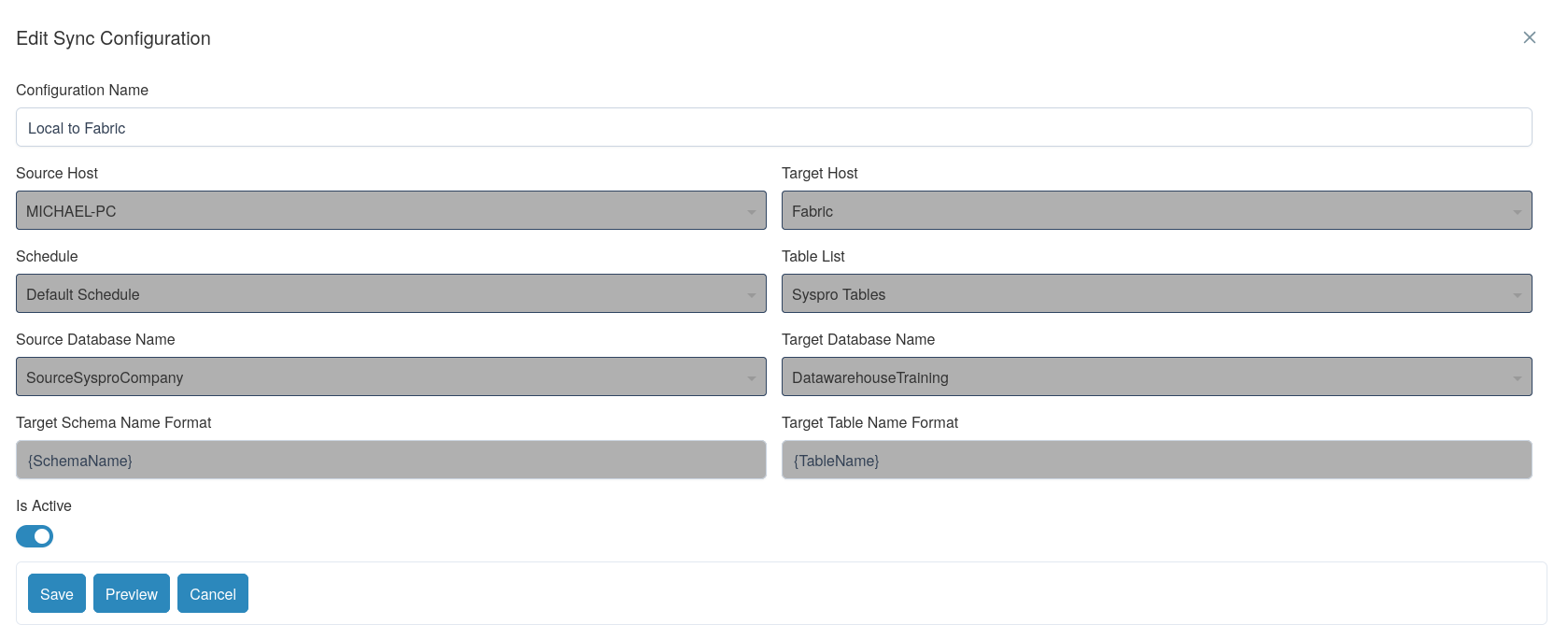
Select Save or Cancel.
Tip
After creating a configuration, open Monitoring to confirm tables appear and move through pending and syncing statuses.