Introduction
Conductor4SQL web service installer will be provided via OneDrive URL link via email. The file will look something like ConductorSQLPro.Installer.1.3.3.0.exe. The version number will be different for each release.
Installation
To install the Conductor4SQL web service simply copy the installer executable over to the server that you wish to install the app.
You then will be prompted to setup installation:
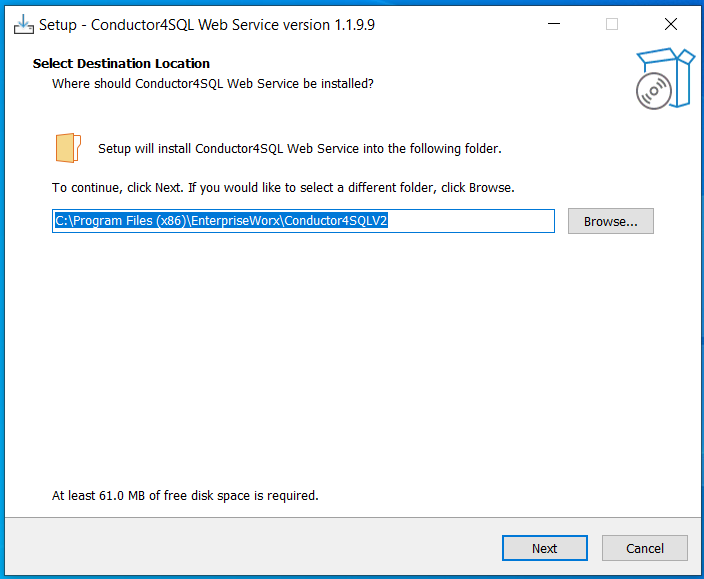
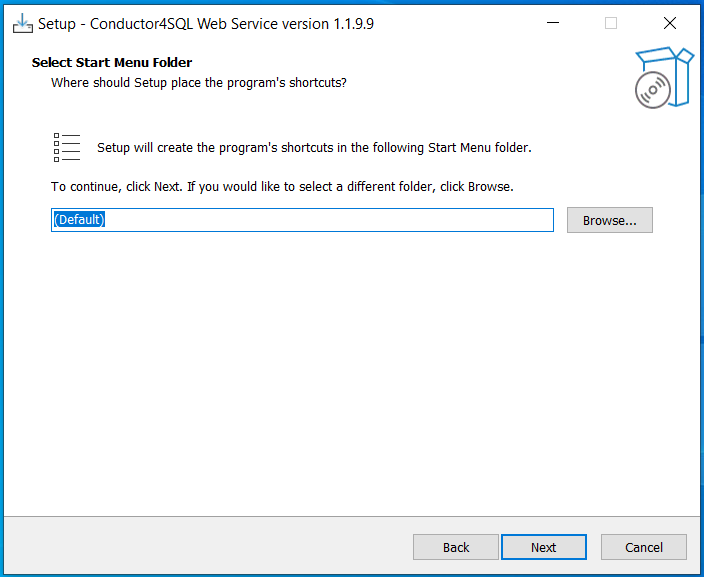
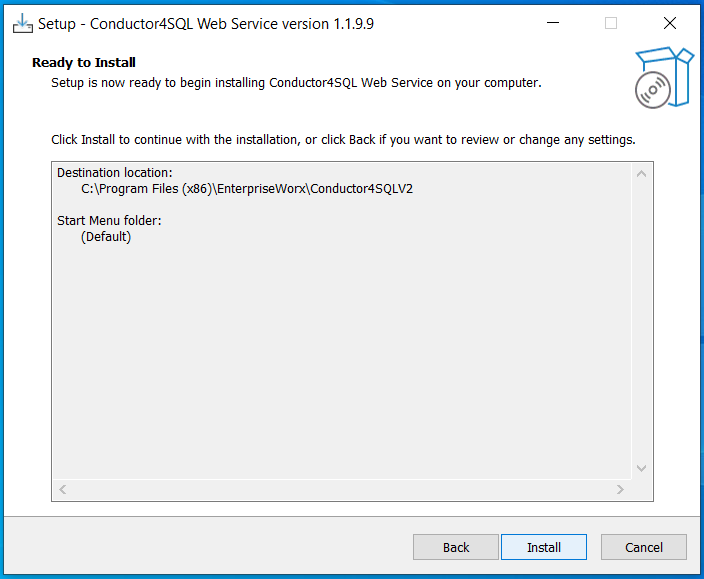
Finally, after the setup is complete a browser window will open to http://localhost:8085 which will open the ConductorSQLPro Setup wizard.
The wizard must run as Administrator. If it is not elevated, setup shows Setup is not running as Administrator and Install stays disabled.
SQL Server
- Database server - hostname or address of the central SQL Server (default
127.0.0.1). - Use Windows authentication for SQL Server - when checked, SQL username and password are hidden and the installer uses Windows authentication.
- SQL username / SQL password - used when Windows authentication is off.
Select Test connection to verify SQL Server access before you install. A success or error banner appears on the form.
Windows service
- Leave Run the Windows service as a specific account unchecked to run as Local System.
- When checked, enter Service account (
DOMAIN\account) and Service password, then select Test account.
Select Install to start the copy and service registration. An Installation
progress page shows status, then a Setup complete or Setup failed
result. On failure, return to setup and check Logs/setup-log.txt for details.
After configuration is complete, you can then access the service using http://localhost:8083 or https://localhost:8084. Adjust your firewall rules to access the application from an external browser.
Upgrades
Run the new installer on the same server. The setup wizard preserves an
existing appsettings.Production.json (SQL connection and related production
settings) when it finds one from a previous release.
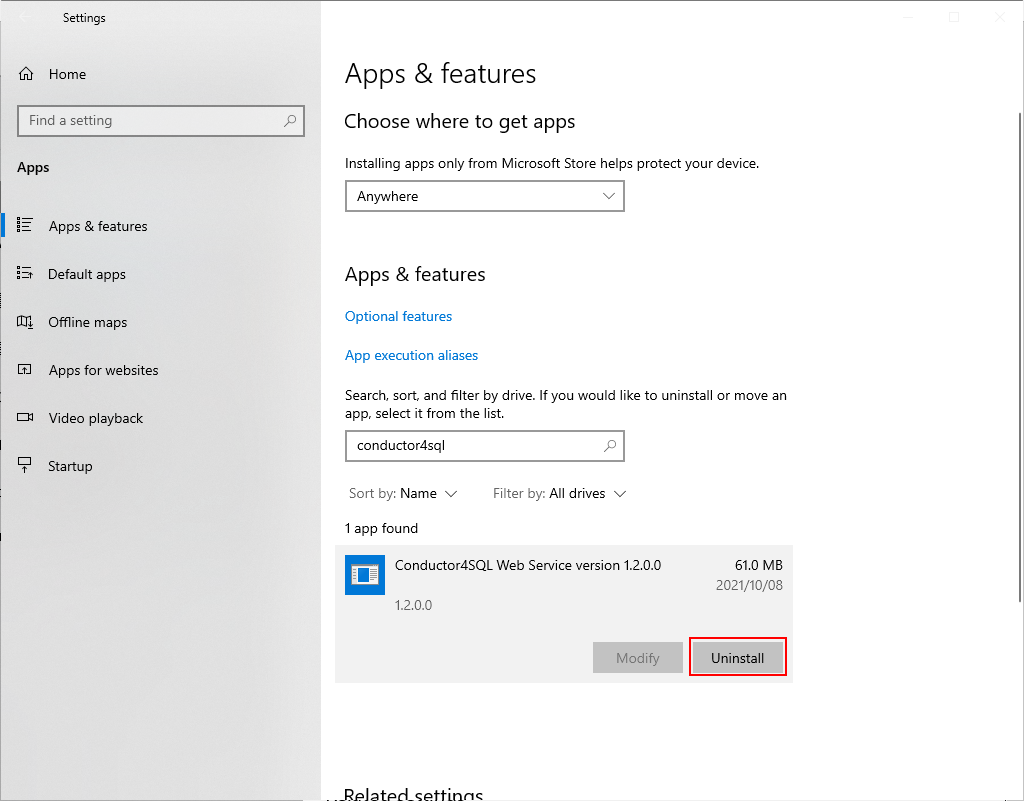
If you prefer a clean Windows install first, uninstall the old version of ConductorSQLPro. Go to Windows Settings and open Apps
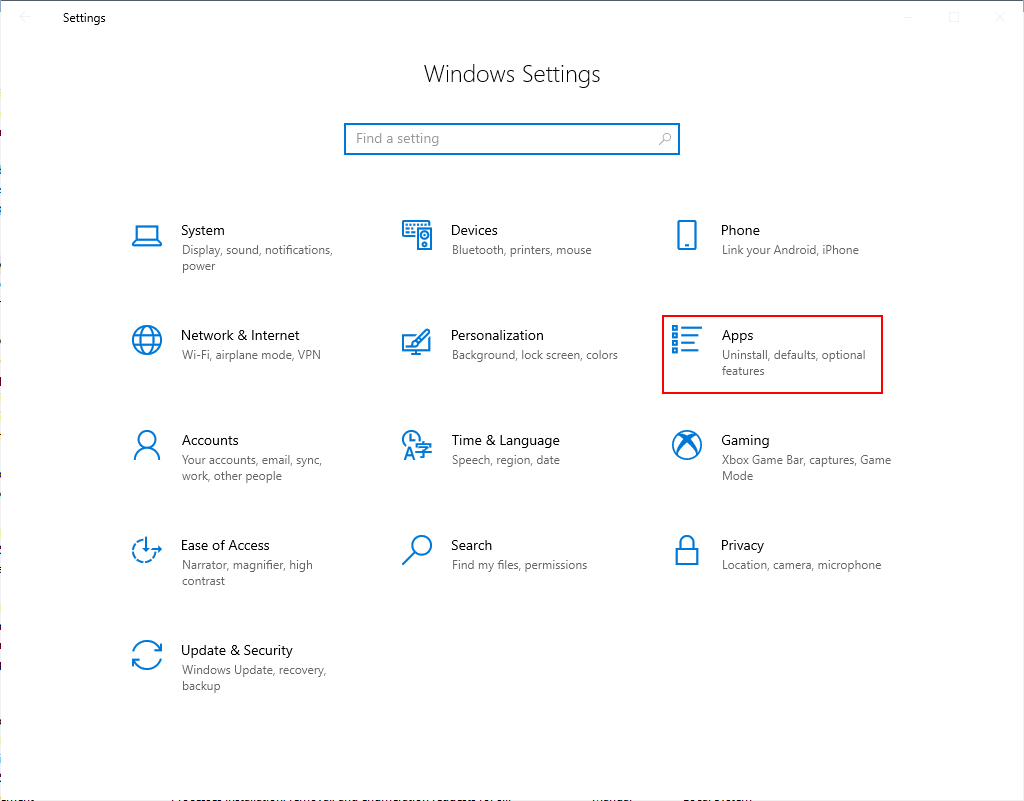
Search for ConductorSQLPro and select the Uninstall option
Then follow the steps for a new installation.
Removal
To uninstall the Conductor4SQL web service, go to Windows Settings and open Apps
Search for ConductorSQLPro and select the Uninstall option
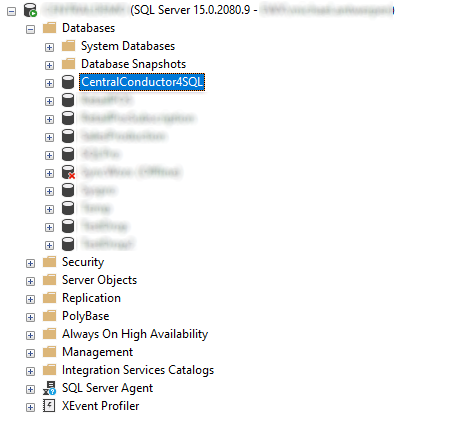
Lastly, you'll need to drop the Conductor4SQLCentral database via SQL Server Management Studio.
Troubleshooting
Should you have issues with the ConductorSQLPro service, if you chose the standard installation folder, you'll find the application log files in C:\Program Files\EnterpriseWorx\ConductorSQLPro\Releases\{release-version-number}\Logs\. If the issue and resolution is not obvious please log a ticket with EWX support at support@ewx.co.za and zip and attach the log file for reference.